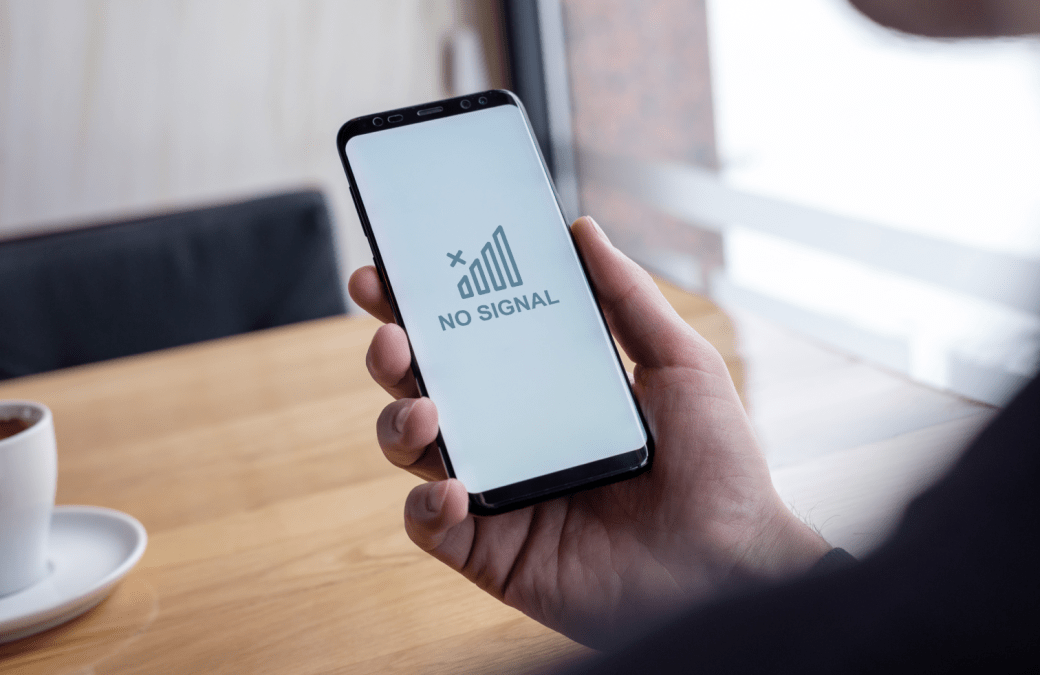
What “Strong Wi-Fi” Really Means Versus What Video Calls Need
When you see full bars on your Wi-Fi and a speed-test shows high download throughput, it feels like everything should work smoothly. Yet many people still experience dropped video calls — frozen video, garbled audio or sudden disconnections. That’s because “strong Wi-Fi” typically refers to signal strength and throughput potential, but video calls demand more than just that. They need short, consistent delays (low latency), minimal packet loss, and reliable packet delivery over time.
Streaming a movie or loading a web page can tolerate some bursts of delay or variation because data buffers ahead, but real-time apps like video conferencing can’t. So even if your router and ISP deliver impressive raw speed, the moment the network introduces delays, jitter, or drops packets — the video call can fail.
How Latency, Jitter And Packet Loss Can Ruin Calls Even With Good Download Speeds
A video call translates your video and audio into packets sent over the internet — and they must arrive on time and in order. If the time between sending and receiving packets (latency) spikes, or the arrival times vary widely (jitter), or some packets never reach the destination (packet loss), the stream gets disrupted. This leads to lag, freezing, or complete disconnection.

Even small packet loss — a few percent — can degrade video quality or stop playback entirely. Research on video-conferencing over wireless networks shows that packet rejection and buffer overflow during heavy traffic significantly degrade video quality, even when bandwidth seems sufficient.
Another related phenomenon is bufferbloat. If routers or network hardware accumulate large queues of packets (often during heavy use), delays increase dramatically. That means even a “fast” Wi-Fi can suffer from unpredictable latency, harming real-time video calls.
Why Wireless (Wi-Fi) Is More Fragile Than Wired Connections During Calls
Wi-Fi is inherently more vulnerable than wired Ethernet because it’s subject to interference, signal fluctuations and shared medium constraints. Thick walls, other electronics, or even the physical position of the device influence signal quality.
Wireless routers often serve multiple devices — phones, TVs, smart-home gadgets — which all share the same airwaves. When many devices use bandwidth simultaneously, or when someone starts a download or streaming session, the router might struggle to keep up. This congestion can cause jitter or packet loss, again harming video calls.
Even at home, background tasks — cloud backups, software updates, device syncing — may quietly consume bandwidth or congest the network, making your video call unstable despite a “strong” Wi-Fi signal.
Router, Network Congestion And QoS: Hidden Culprits Behind Drops
Routers configured without proper Quality of Service (QoS) prioritization treat all traffic equally: streaming, downloads, browsing, and calls all compete for the same bandwidth. As a result, during high load, video-call packets might get delayed or dropped.
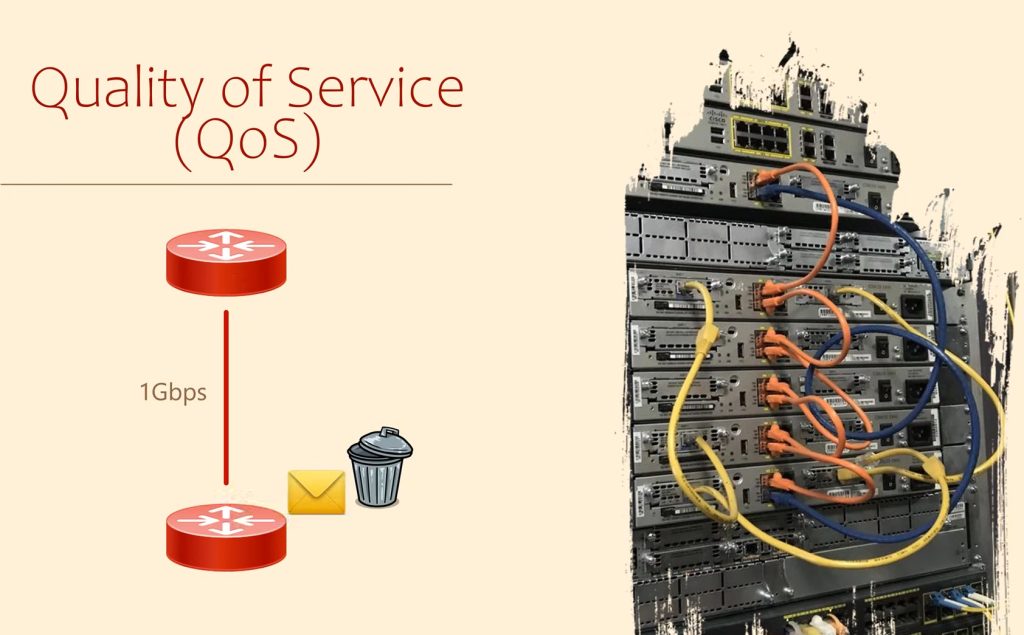
Old or outdated routers — with poor firmware or weak hardware — may struggle to manage many connections, leading to buffer overflow or mismanagement under load. Combined with Wi-Fi’s inherent unpredictability, this can cause random call drops even when other online tasks seem fine.
Also, shared networks (family home, apartment building, coworking space) may suffer external interference from neighboring Wi-Fi networks using the same frequency band. That interference adds noise and increases packet retransmissions, degrading call stability even though your device reports strong signal bars.
Device And Software Factors That Can Break A Call Independently Of Wi-Fi Strength
The problem may not always be with the network. Your device’s Wi-Fi adapter, outdated drivers, or poor power/thermal management can corrupt packets or cause temporary drops. Especially laptops or PCs with energy saving settings may throttle network performance when battery is low or CPU is busy.
Video-call applications themselves might mishandle resource priorities. If background services (file sync, updates, backups) spike, they can take processing time or network bandwidth, causing hiccups. Even local firewall or antivirus configurations might interfere with real-time traffic.
Also, if the remote participant — or server — has instability, the call may drop regardless of how stable your connection is. That’s another reason why sometimes a “strong” connection is not enough to guarantee a smooth call.
Practical Checks And Steps To Improve Stability Before And During Calls
If you want to reduce the chance of video-call drops — especially when you rely on Wi-Fi — here are some good habits:
- Use wired Ethernet if possible — the wired connection is far more stable than Wi-Fi for real-time communication.
- Place your router in a central, open location; avoid thick walls or metal barriers between router and device.
- Minimize other network-heavy activities during calls: pause downloads, streaming, or large uploads — these compete for bandwidth and add latency.
- Enable QoS (Quality of Service) on your router — prioritize video and voice traffic over bulk data tasks so your call gets priority routing.
- Keep router firmware and device drivers updated — outdated network hardware is more likely to mismanage packets.
- If possible, test your connection for jitter and packet loss (many online tools exist) — often upload speed matters more than download for video calls.
These steps don’t guarantee perfection, but they reduce many of the common causes of instability and make video calls much more reliable even over Wi-Fi.
Strong Wi-Fi signal is a useful start — but stable latency, low packet loss and clean signal paths are what keep a video call alive.