
Why Sudden Fan Noise Feels “Random” To Users
Anyone who has used a modern laptop has felt that moment: you’re reading email or scrolling through a news site, and suddenly the fans roar as if you just launched a massive game. It feels random because nothing visible on the screen suggests heavy work. The contrast between a quiet moment and a sudden blast makes the sound sharper and more noticeable, especially in quiet rooms. Consumer surveys from major OEMs, such as Dell and HP, consistently report that “unexpected noise” is one of the most common support questions — not because something is broken, but because the behavior is poorly understood.
Some laptops are more prone to this effect than others. Ultrabooks with thin magnesium or aluminum chassis heat up and cool down much faster than bulkier models, which makes temperature changes — and fan responses — more abrupt. Even though users perceive the behavior as random, the system is reacting to real, measurable temperature changes. You just don’t see the thermal spikes on screen, even though the CPU sensors do. That contrast between invisible activity and very audible cooling is what creates the feeling of unpredictability.
How Laptop Cooling Works And Why It Jumps In Steps
Modern laptops run on aggressive boost algorithms. Intel’s Turbo Boost and AMD’s Precision Boost allow CPUs to jump from low power states to high frequencies in milliseconds to speed up tasks. According to both companies’ public documentation, these boosts intentionally occur in rapid bursts to improve responsiveness. When the CPU boosts, its temperature rises very quickly — sometimes 15–20°C within a second.
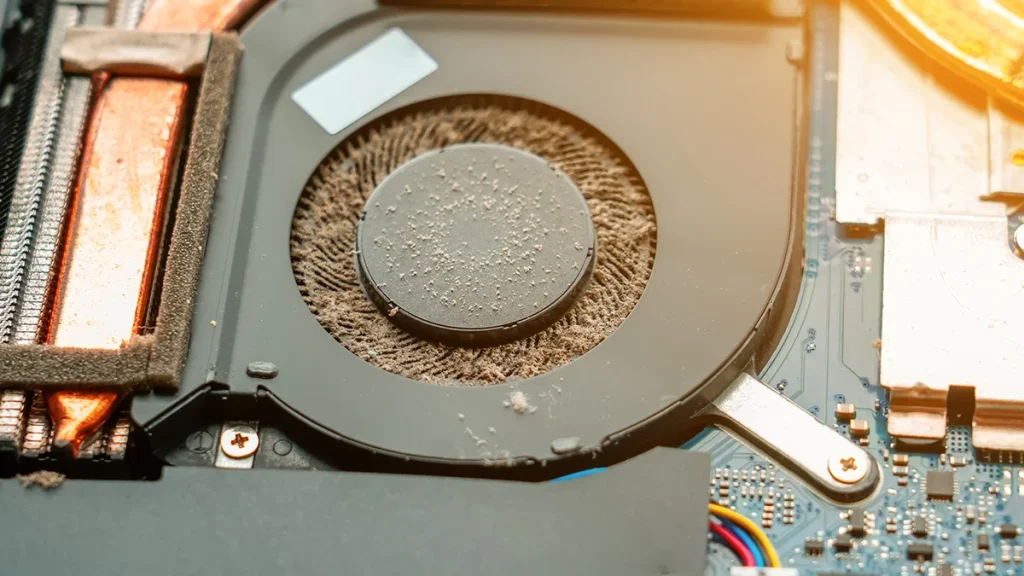
Manufacturers set “fan curves” that respond to temperature thresholds. When a sensor crosses one of these steps, the fan ramps up immediately to a predefined speed.
Because the fan curve uses steps rather than a smooth gradient, the increase sounds sudden. This is intentional: laptop fans wear out faster when constantly adjusting speed. A stepped curve reduces mechanical stress and prolongs lifespan. The trade-off is that when the CPU briefly spikes in temperature, the fan may jump to a louder mode even if the spike lasted only a moment. Thin laptops also have smaller heat pipes and less thermal mass, so they can’t absorb short temperature bursts silently the way larger machines can.
How Background Processes And Browsers Trigger Thermal Bursts
Even when your laptop appears idle, the operating system and apps are active. Windows, macOS, and Linux all perform maintenance tasks in the background: indexing, antivirus scans, telemetry uploads, software updates. These tasks are documented publicly by Microsoft and Apple, and although they’re usually lightweight, they can trigger brief CPU boosts.
Modern browsers add another layer. Chrome, Edge, and Safari heavily rely on multi-process architecture. A single tab with a heavy script, a looping animation, or an auto-playing video can momentarily spike CPU usage. Benchmarking platforms like BrowserBench.org repeatedly show that JavaScript engines can trigger rapid frequency boosts even from tasks that appear small. Because these bursts are short, the user doesn’t see “100% CPU” long enough to notice, but the fan responds anyway.
In cloud-connected apps — Slack, Teams, Google Drive, OneDrive — background sync can also cause brief thermal spikes. All of this is normal, documented behavior, but it contributes to the perception that the fan is reacting “out of nowhere.”
Why Manufacturers Use Aggressive Thermal Profiles
In the past decade laptops have become dramatically thinner. To maintain performance in small chassis, manufacturers frequently tune devices to favor responsiveness over acoustics. Public engineering notes from Intel and AMD emphasize that thin laptops rely on fast heat dissipation, which often means fans must respond more quickly and more loudly than in older, thicker models.
There is also the industry-wide trend toward low-latency UI performance. When a user clicks something, the CPU should respond immediately. To achieve that, laptops allow the processor to boost instantly. But fast boosts generate heat faster than passive cooling can handle. Fans compensate by reacting early and decisively. The result is a pattern of sudden, short cooling bursts. This behavior isn’t a flaw — it’s an intentional design choice balancing heat, noise, performance, and size.
Another factor is regulatory pressure. EU and US energy-efficiency standards push manufacturers to optimize for lower sustained power consumption, which ironically encourages short high-power boosts rather than long moderate workloads. This makes cooling behavior more dynamic and noticeable.
When Fan Spikes Are Normal And When They Signal a Problem
Most sudden fan noise is normal. But there are situations where the behavior changes due to actual issues. Public documentation from Apple, Lenovo, and HP identifies several common causes:
- Dust buildup reducing airflow
- Thermal paste degradation after years of use
- Blocked vents (especially on soft surfaces)
- Outdated BIOS or firmware controlling the fan curve
If the fan runs at high speed constantly — not in short bursts — it may indicate thermal throttling or a cooling system fault. Tools such as Intel Power Gadget, AMD Ryzen Master (desktop only, but provides insight), and macOS Activity Monitor can show temperatures and CPU boost behavior in real time. If temperatures stay high even under light workloads, cleaning or servicing might be needed.
If a laptop is new but extremely noisy, some manufacturers allow switching to “quiet mode” through BIOS or system utilities. These modes use less aggressive boost profiles, which reduces fan spikes at the cost of some performance. This behavior is documented in utilities such as Lenovo Vantage, Dell Power Manager, and ASUS Armoury Crate.
How Users Can Reduce Sudden Fan Bursts Safely
There are practical ways to reduce abrupt fan behavior without harming the laptop. These steps are widely recommended by manufacturers:
- Keeping the device on a hard, flat surface to improve airflow
- Disabling unnecessary startup apps that frequently spike CPU
- Enabling built-in “quiet,” “battery saver,” or “eco” modes
- Limiting background sync in apps like OneDrive or Google Drive
- Cleaning dust from vents annually
It’s important to clarify that users should avoid third-party fan control tools on laptops unless the manufacturer explicitly supports them. Such tools can override factory thermal limits, which both Intel and AMD warn against in their public guidance.
Finally, some degree of sudden noise is simply normal for thin, fast laptops. They are designed to react quickly to micro-bursts of heat. Understanding this can make the behavior less frustrating, because it’s not a sign of damage — it’s a consequence of design priorities in modern portable devices.
What We Know For Sure — And What Remains Uncertain
Most causes of fan spikes are well-documented: CPU boost algorithms, stepped fan curves, thin-chassis thermal limits, and background processes. These are backed by public engineering notes, OS documentation, and manufacturer guidelines. However, detailed fan profiles for specific laptop models are not always published. Many companies consider them proprietary, so users cannot always know exactly which temperature thresholds trigger fan spikes.
What we can say confidently is that the “randomness” is only visual: the hardware is responding to quick temperature changes that users do not notice. The underlying patterns are clear, even if the details vary by manufacturer.